Turbo Chart Data Fields
This article assumes the following User Defined Fields have been created within P6 for Turbo Chart Data
- Numeric UDF for location start value
- Numeric UDF for location end value
- Text UDF for Shape Code values
- Text UDF for Filter Code value (this field is not a required field, but can also be used)

Creating a Working Layout
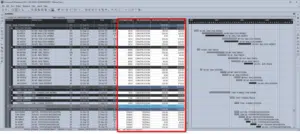
To create a general purpose layout, assign the above UDF fields as additional columns in any layout.
- In P6 Activity View, Select VIEW > COLUMNS from the menu, or right-click on the column headers and select COLUMNS
- Select all the UDF fields required, and press the right Arrow to include the columns in the layout

- The columns are now available for data entry or modification.
- Any Grouping and Sorting options may be applied

A sample P6 Layout file LPS_WBS ACTIVITY VIEW.plf is provided in the sample data (HELP > DOWNLOAD SAMPLES within Turbo Chart). Note that the layout may not display the UDF fields as each P6 database has unique ID’s that may not display with the provided layout file.
Spreadsheet Data Import
A layout that provides data that can be imported via spreadsheet import requires the following data fields. Note that column headings must be modified to match those required by Turbo Chart:
| Column Heading | P6 Data Field | Data Type |
| Name | Activity ID | Text Values |
| Description | Activity Name | Text Values |
| ShapeCode | P6 UDF for Shapes | Text Values |
| FilterCode | P6 UDF for Filters | Text Values |
| Start | P6 UDF for Start Position | Numeric Values |
| End | P6 UDF for End Position | Numeric Values |
| Start Date | Start | Date Format |
| Finish Date | Finish | Date Format |
To modify column headings in P6, select the field to modify, then select EDIT COLUMN

And then enter the New Title required for the column

Apply to all the required Data Fields

A sample P6 Layout file LPS_SPREADSHEET IMPORT VIEW.plf is provided in the sample data (HELP > DOWNLOAD SAMPLES within turbo Chart). Note that the layout may not display the UDF fields as each P6 database has unique ID’s that may not display with the provided layout file.
A Sample Spreadsheet import file (Macro-enabled XLS file) is also provided in the sample data to display the required import columns and headings.
Once the required headers are provided, data from P6 can be copied and pasted into Turbo-Chart, through the DATA>TASKS “Paste from Clipboard” function.
Further Help
Should you need further help regarding Turbo-Chart, we are here to support you!
Just send an email to support@pmerasupport.com